
Appearance
Brand your GST invoices
Replace default placeholder text with official company details and remittance accounts:
- Identity customization: Embeds registered contact details, PAN, and corporate identifiers.
- Multi-currency banking: Maps domestic and international bank accounts per invoice currency.
- Template automation: Applies verified branding and tax splits to all future invoice PDFs.
Replace the samples before you invoice
The wizard pre-fills examples such as +91-1234567890 and PAN ABCDE1234F. If you skipped the identity step, those placeholders appear on real invoices. Always set your own values.
1. Set your Footer & Identity
Configure footer branding under Addons → GST Manager → System Setup → Footer & Identity:
- Phone & Email: Customer support contact details printed on invoice footers.
- PAN: 10-character Permanent Account Number for corporate tax identification.
- CIN / LLPIN: Corporate Identity Number (Companies) or Limited Liability Partnership Identification Number.
 Addons → GST Manager → System Setup → Footer & Identity
2. Set per-currency Bank Details
Enter remittance instructions under System Setup → Bank Details:
- Domestic accounts: Provide bank name, account number, IFSC code, and branch for INR billing.
- Foreign accounts: Add SWIFT/BIC, IBAN, and intermediary bank routing for international currencies (USD, EUR, GBP).
 Addons → GST Manager → System Setup → Bank Details
Do this once, benefit forever
Both sections apply to every future invoice PDF automatically — set them correctly now and you never think about it again.
About the client-area bank details
Bank information can display directly on the client-area invoice view:
- License requirement: Client-area bank display is a license-gated feature.
- Resilient local caching: Local license caching prevents temporary server outages from hiding details.
- Uninterrupted billing: Core invoicing, PDF generation, and tax reporting continue operating even if licensing checks fail. See Licensing.
What the finished invoice looks like
Configured invoices output a standardized TAX INVOICE layout containing:
- Official company header, logo, and registered GSTIN.
- Statutory GST breakdown (CGST/SGST intra-state or IGST inter-state).
- Currency-matched bank remittance details and footer identity numbers (PAN, CIN/LLPIN).
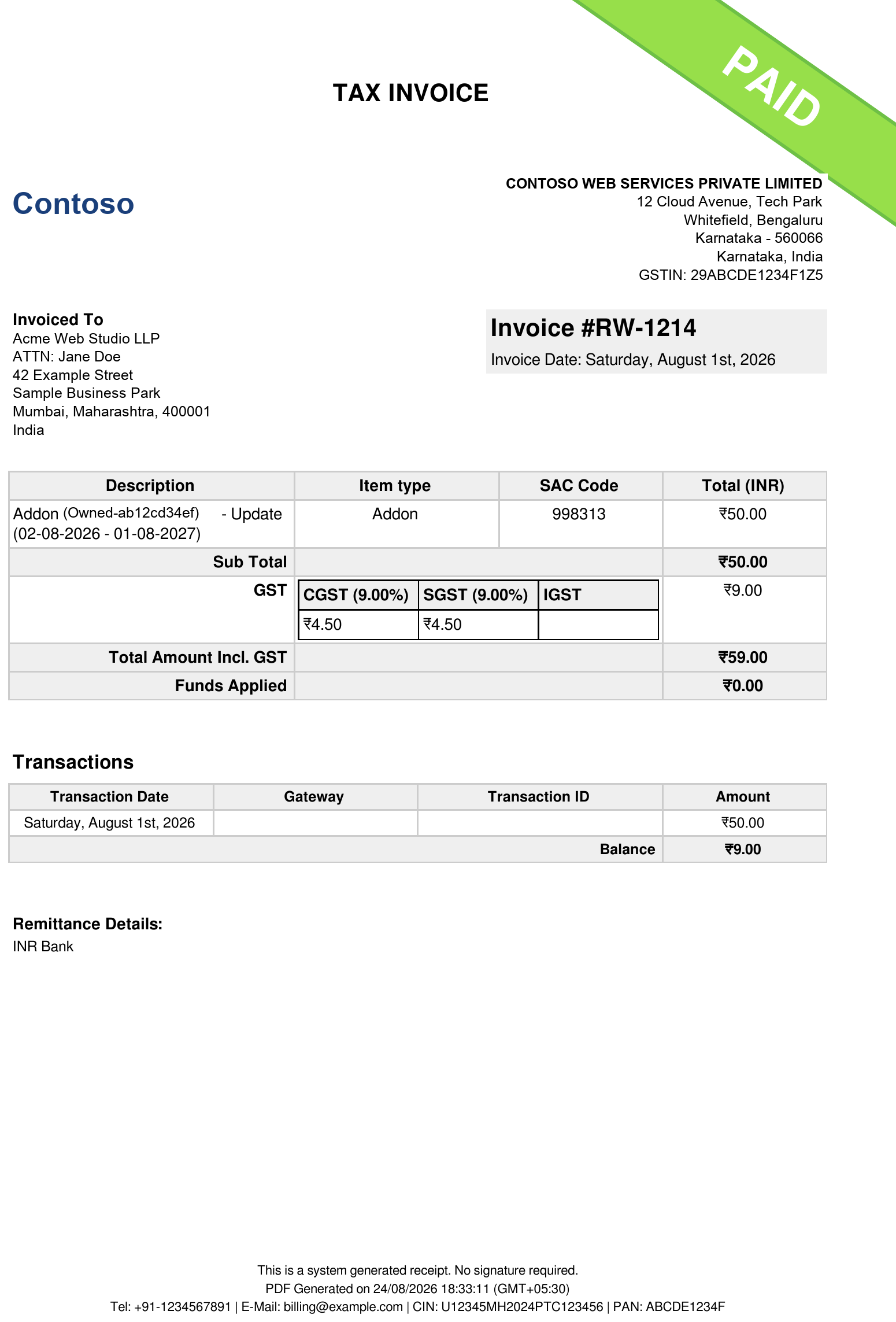 A paid domestic TAX INVOICE — shown with sample client details
Related pages
- Settings reference — Footer & Identity and Bank Details fields
- Licensing — keeping the client-area feature active
- Handle export invoices — per-currency for exports